Cleaning Up a Revit Model Before It Reaches a Render.
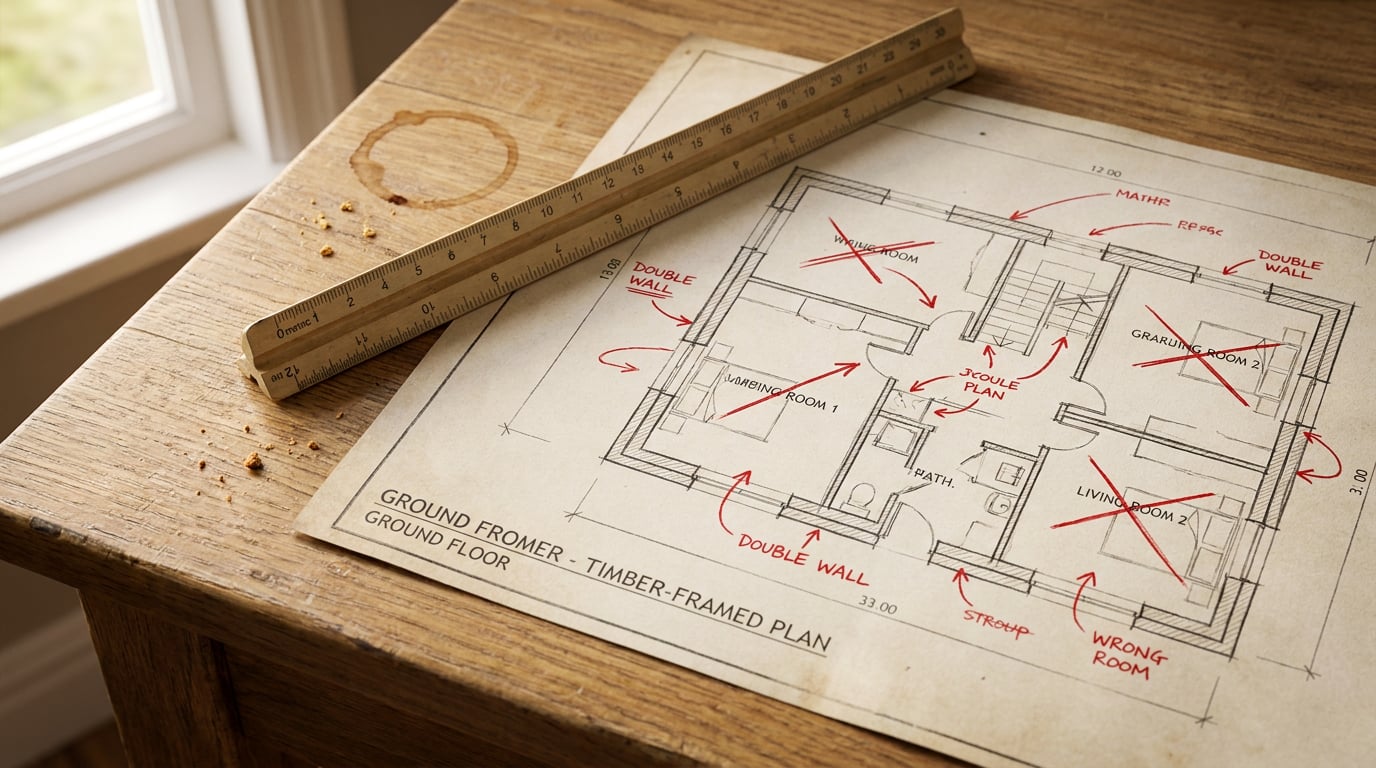
A Revit model that works for drawings can wreck a render. Fix the export, the hidden geometry and the material mapping before the model leaves Revit.
A Revit model that produces a clean elevation, a tidy section and a sheet set that passes checking can still fall apart the moment someone looks at it in perspective. That is not a fault in your modelling. Revit is built to produce documentation, and documentation forgives a great deal. This article covers the three places a model needs attention before visualisation: the export, the geometry that should not be there, and the materials.
Why a Model That Drawings Well Renders Badly

Documentation tolerates things a renderer cannot. Overlapping elements, 2D-only detail components, masking regions and geometry that only reads in section all do their job on a sheet. In a perspective, every one of them is either visible or actively wrong.
Take a single facade bay through three outputs. In the drawn elevation, the wall, the window and the cill read as clean linework. In the cut section, the build-up reads as a poché with a few detail components doing the explaining. In the perspective, you see what is actually there in 3D: a second wall instance sitting inside the first, a filler block that exists only to make the section look right, and a cill that stops short of the reveal. Only the perspective exposes what the sheet views were hiding.
The principle is simple. A render shows what exists in 3D, not what your view template displays. Visibility and graphics overrides, filters and detail-level settings belong to the view. They do not travel with the geometry. I would not rely on them surviving an export, and Autodesk's own export documentation is organised around categories, mappings and settings rather than around the look of a sheet view.
A view template is a set of instructions for a drawing. A renderer has never read it.
Decide the render's job first
Before you clean anything, decide what the image is for, because the three common jobs need very different levels of tidiness.
- Concept massing view. Form, height and relationship to neighbours. Windows can be simple voids. Nobody will notice a coplanar face on a roof you are reading as a silhouette.
- Planning-stage street scene. The facade has to be believable at pedestrian height. Openings, reveals, rainwater goods and the junction with the ground all get scrutinised.
- Client interior. The most demanding. Wall build-ups, ceiling voids, skirtings and every surface within arm's reach of the camera need to be right.
A concept massing view needs perhaps twenty minutes of attention. A client interior can need half a day. Put that time in the programme. An hour of cleanup before export saves repeated failed renders later, and those cost far more than an hour.
Export Settings That Decide What Leaves Revit

Choose the route by destination, because the formats carry different things. Autodesk documents IFC as an interoperability format that carries building objects and properties, with export controlled through IFC versions, category mapping and property-set settings. An FBX, OBJ, DAE or GLB export is a different animal: it is a geometry hand-off, essentially faces.
| Route | What it carries | Use it when |
|---|---|---|
| IFC | Building elements with structure and properties; category mapping and property sets are configurable | The destination needs to understand walls as walls, or you want to inspect element structure |
| FBX / OBJ / DAE / GLB | Geometry as a mesh, with settings that affect smoothness and file size | The destination only needs shapes to light and render |
Choosing an IFC version
Autodesk lists IFC 2x3 Coordination View 2.0 as the default certified option and describes IFC4 Design Transfer View as the newest listed schema. Newest is not automatically safer. Autodesk also notes that IFC 2x3 remains the latest version generally supported by other systems. If your destination is unknown or varied, the default is a reasonable place to start. If the receiving software documents IFC4 support, use it. The deciding factor is the destination, not the version number.
The export setup also lets you configure category mappings, predefined IFC types, additional property sets and options for exporting parts as building elements. Most visualisation hand-offs will not need the property sets, but the category mapping is worth a look, because it determines what an element is called on the other side.
The dedicated export view
Autodesk's FBX workflow requires a prepared 3D view before export, and that view is the source of the exported model. That one fact justifies a habit worth adopting on every job: create a dedicated 3D view for export, and treat it as a deliverable.
In that view, switch off the categories that add noise rather than information:
- Grids, levels and reference planes
- Section marks and elevation markers
- Annotation and tags
- Analytical elements
Keep the categories the image actually needs. A street scene may not need the furniture at all. A client interior may not need the roof.
Two FBX settings worth understanding
Autodesk documents Use LOD for FBX export. Clearing it creates a more faceted, smaller file. Enabling it produces smoother geometry and a larger file. That is a practical trade-off, not a quality switch. Curved glazing, round columns and a barrel-vaulted ceiling benefit from the smoother option. A rectilinear scheme of brick and timber rarely does, and the smaller file is easier to move around.
The second is Without boundary edge. Autodesk describes it as hiding the lines where surfaces meet, producing a less constructed-looking result in 3ds Max. Clearing it keeps the boundary edges. If your destination displays edges and the model looks like a wireframe over a solid, this is the first setting to check.
Split the building where it helps
Where a scheme is large, consider exporting the shell, the interior fit-out and the site as separate files. This is workflow advice rather than a documented requirement, but it makes problems much easier to isolate. When a fault appears, you know which file to open.
Check before you trust
Inspect the prepared 3D view before export, then inspect the exported file in a viewer that is not your renderer. If something is wrong there, the fault is upstream of the render and no amount of lighting will fix it.
Linea, in ArchAdemia Tools, is one way to do that. It imports IFC, FBX, OBJ, DAE, GLB and STL files, parsed in the browser with nothing uploaded, and shows the same model as a plan and in 3D. Linea is a drawing and modelling tool, not a BIM tool, so use it to see what actually left Revit rather than as a place to continue the Revit model.
Check the export in a neutral viewer before you check it in a renderer. You will know whether the fault is in the model or in the render setup.
Hidden Geometry, Duplicates and Coplanar Faces

The following problems are plausible and common, but they are workflow observations from practice rather than measured findings. Treat them as a checklist, not a diagnosis.
The usual offenders
- Overlapping walls and floors. Two elements occupying the same volume. Invisible in plan, visible as flicker or doubled surfaces in 3D.
- Duplicate family instances. A door placed twice on the same spot, or a column dropped on top of another. Hard to see in a view, easy to find with a schedule that counts instances by location.
- Unresolved joins. Walls and slabs that should be joined and are not, leaving gaps or overlaps at the junction.
Coplanar faces
Two surfaces sharing a plane are the classic visual glitch. The renderer cannot decide which one is in front, so it alternates, and you get shimmering or striped patches. A finish layer sitting exactly flush with a structural face, or a floor finish modelled at exactly the same level as a slab top, are typical causes. The fix is almost always to separate the surfaces by a small real offset or to remove one of them.
Geometry that only exists for the drawing
Look for fillers, masking regions and oversized voids that exist to make a drawing work. Whether a hidden element exports depends on the format, the exporter and the view settings. Autodesk's documentation ties export to the prepared view and the chosen settings, so do not assume that hiding something in a sheet view removes it from the hand-off. The safe approach is to check the exported file, not to rely on what you remember hiding.
Lighten the heavy families
Furniture, planting and specialist equipment are often the heaviest families in a model. A manufacturer's detailed chair with every stitch modelled adds file weight and little visual value at the scale of a room. Swap detailed manufacturer content for a simpler stand-in before export, and put the detail back in the render stage if it matters.
Interiors need a different pass from exteriors
An exterior render is forgiving about what sits behind the walls. An interior is not. Check:
- Wall build-ups, so the reveal at a window shows the right thickness
- Ceiling voids, which can show through at a badly modelled upstand
- Any element hidden behind the camera that will still catch light and cast shadow into the frame
A sanity routine
- Orbit the exported model at eye level, not from a bird's-eye view.
- Look at the underside of every overhang and soffit.
- Check the edges where a wall meets a roof for open gaps.
- Walk the likely camera positions and look back at the building.
Five minutes of this finds most of what a failed render would otherwise reveal at far greater cost.
Material Mapping: Fix the Surfaces Before the Render Does
A note on sourcing. I could not find first-party Autodesk documentation on how Revit materials, UV coordinates and appearance assets behave through export, so treat what follows as practical guidance and check your own result. The reliable approach is to assume nothing survives intact and verify.
Rebuild rather than trust
Expect to rebuild or reassign finishes in the destination. Keep a short list of the materials the scheme actually uses: for a typical house, perhaps six to ten. A list that short is quick to reassign and quick to check.
Name materials by what they are
Name materials by what they are: brick, timber cladding, glazing, render. Names like "Material 14" or a manufacturer code mean nothing at assignment time. Consistent, descriptive names make sure every instance of a surface is caught together and nothing gets missed on a back elevation.
Stretched and smeared textures
When a texture looks stretched or smeared, the usual cause is missing or wrong UV mapping on the exported mesh. A texture at the wrong scale reads as wrong immediately. Brick courses that are twice the real height tell the viewer something is off, however good the lighting is. Check scale on the surface you know best, a brick wall or a plank floor, and the rest will follow.
Decide each finish deliberately
Linea models start in flat painted colour, never a texture. A new wall is white, floors and roofs light grey, metalwork plain metal, and a surface only carries a photographic finish where you have deliberately painted one on. It is a useful discipline to borrow for your Revit export: decide each finish rather than assuming one arrived. If you cannot say what a surface is meant to be, the renderer cannot either.
Glazing needs its own check
Check glazing and reflective surfaces separately. A mislabelled window can render as an opaque panel, which reads as a blank wall and ruins an elevation. Look at every glazed element and confirm it has the right material before you spend time on the final image.
Fix one surface without re-exporting
If a finished render has one surface wrong, Retouch's material swap replaces a selected area's texture to match an attached reference, as a toggleable layer. For a single cladding panel or one wrong paving area, that is quicker than re-exporting and re-rendering the whole view.
Decide every finish yourself before the render. A material you did not choose is a material you will be correcting in the final image.
Test Frame, Fixes and Hand-Off to Visualisation
Do not spend your best render on the first attempt. Run a cheap, low-resolution test view and treat it as a diagnostic. Its job is to show you what is still wrong: a flickering soffit, a glass panel that has gone opaque, a texture at the wrong scale. Fix what it shows, then commit time or credits to the final image.
Where the cleaned model goes next
From a cleaned export, there are two routes inside ArchAdemia Tools. Send the model into a Composer scene to pose and frame it, or set up a view in Linea and send a perspective straight into the rendering studio. Which you choose depends on whether you need to compose the shot in a 3D scene or want to carry a specific drawn view across.
What cleanup cannot fix
Some problems belong to the image, not the model. Use Retouch afterwards for those. Enhance area re-renders a soft or repetitive region at higher resolution with no prompt and composites it back through the selection, which suits a wide render where the far end of a facade has gone soft or a row of identical windows has started to repeat.
The one-page checklist
Keep a one-page checklist for each project, and reuse it on the next scheme:
- Dedicated export view created and inspected
- Noise categories switched off: grids, levels, reference planes, section marks, annotation, analytical
- IFC version or mesh settings chosen for the destination
- Duplicates, overlaps and coplanar faces removed
- Heavy families swapped for simpler stand-ins
- Materials named by what they are and reassigned deliberately
- Glazing checked separately
- Export checked in a neutral viewer
- Low-resolution test frame reviewed
The model you hand to visualisation is a deliverable in its own right. A clean export and deliberate materials do more for the final image than any prompt, and the work of getting them is the part of the job you control completely.
Keep reading.
Try ArchAdemia Tools for yourself
Draw it, model it, render it, publish it. One place, built for architects and small practices. Plans from £19 a month billed yearly (£228 a year), all in.