Preparing Householder Planning Drawings: A Step-by-Step Checklist.
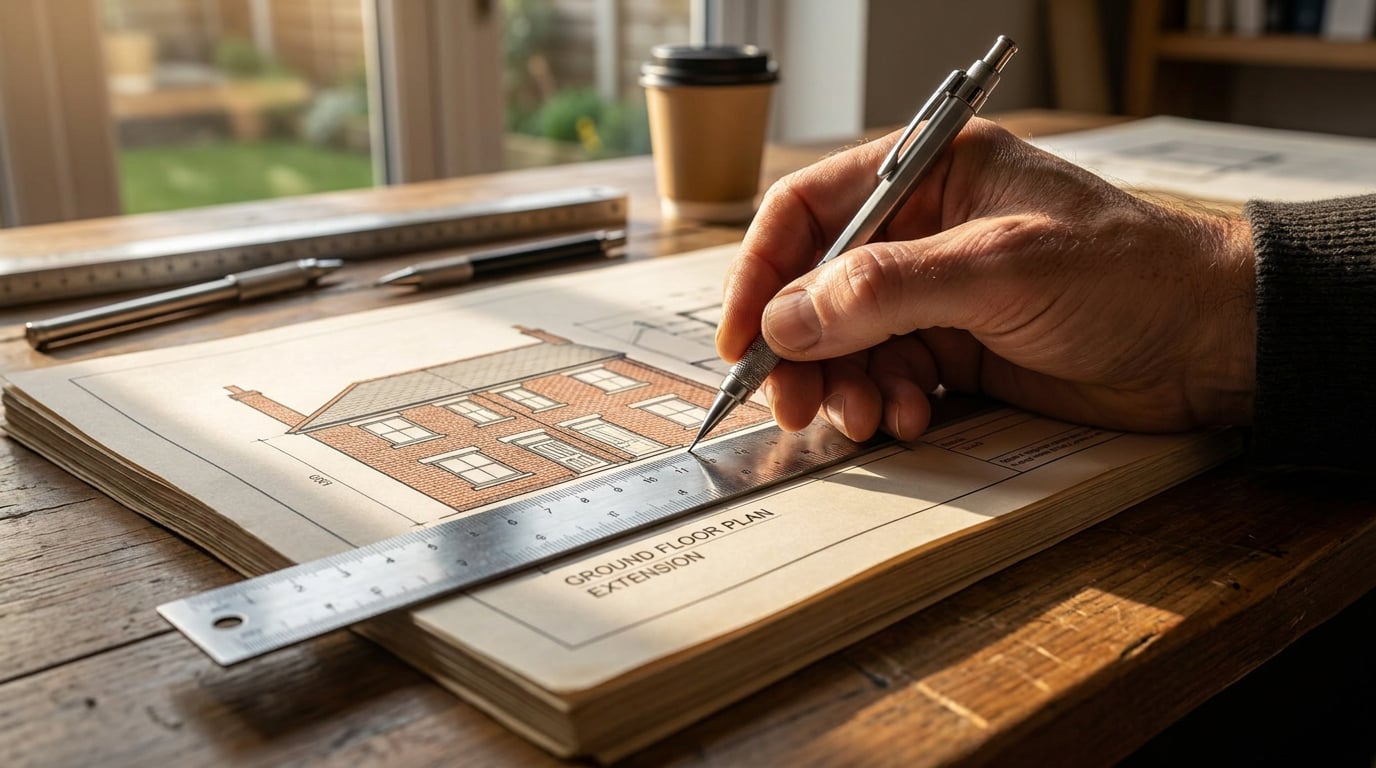
Most householder applications bounce for avoidable drawing errors. Work through this checklist from survey to PDF and submit a set the validation officer can pass first time.
A householder planning application lives or dies on its drawings. The form is a few pages of tick boxes. The drawings are what the officer measures, compares against the site and, if anything is missing or inconsistent, uses as the reason to bounce the whole thing back at validation. This checklist walks through the set in the order you should build it, from the council's own requirements to the final export.
Start with what your council will actually validate

Before you draw a line, find your council's local validation checklist. Every local planning authority publishes one, and it overrides any generic advice, including this article. The checklist is the master list: it tells you which drawings are required, at which scales, and what else must accompany them. Some authorities, the Isles of Scilly among them, explicitly instruct applicants to complete and submit the local checklist with the application, including through the Planning Portal where that applies.
The national baseline for householder work
Current council checklists for a typical householder application converge on the same core set:
- Location plan, usually at 1:1,250 or 1:2,500.
- Site or block plan, usually at 1:200 or 1:500.
- Existing and proposed floor plans, usually at 1:50 or 1:100.
- Existing and proposed elevations, at the same 1:50 or 1:100.
- Sections or level information, where the proposal changes levels or alters the roof.
Treat those scales as common checklist requirements, not universal rules. Check your authority's wording. Some want both an existing and a proposed block plan, so do not assume one plan covers both.
Supporting documents depend on the site
Confirm whether this particular site triggers a Design and Access Statement, a heritage statement or ecology information. Conservation areas and listed buildings add requirements on top of the baseline, and the checklist will say which. If the checklist is ambiguous for your site, ring the council or ask a planning consultant before you draw, not after you submit.
Decide the sheet strategy now
Choose early between one drawing per sheet and several drawings per sheet. Then keep a short drawing register: every drawing, its number, its scale and its revision. Five minutes spent on that list now stops a drawing quietly going missing at export.
The council's validation checklist is your brief. Everything else in this guide is a way of meeting it without a validation query.
Build the base: survey, existing drawings and the red line

Work from measurement, not from marketing
Draw the existing building from a measured survey or your own verified measurements, never from an estate agent's floor plan. Officers check existing drawings against what is on the ground, and a wrong existing elevation undermines the credibility of the whole application, however good the proposal is.
If the survey arrives as a DXF or DWG, import it into Linea so the 2D plan and the 3D model stay one drawing. Practice CAD files routinely hold twenty-odd drawings in one model space, all on the same layers. The Linea import dialog draws the file before it lands and outlines the separate drawings it finds, so one click on the outlined region crops the import to the single plan you need, cut clean at the edge and landing on the origin. You can also drag a box by hand if the detection misses.
Linea imports DXF and DWG and exports DXF, so the work moves in and out of the CAD your consultants use. It is a drawing and modelling tool for everyday practice work, not a BIM package.
Set up existing plans and elevations first
Do the existing drawings before touching the proposal. They are the fixed reference everything else is measured against, and getting them right once saves correcting them in three places later.
Location plan and block plan
Draw both from the base map. The requirements to meet:
- Red line around the whole application site, clearly and continuously edged. Include relevant access, parking, gardens and outbuildings, not just the footprint of the house.
- Blue line on any other land you own, if your authority's checklist asks for it. Confirm this locally rather than assuming.
- Block plan context: the proposal shown in relation to boundaries, neighbouring buildings, access and the highway, with trees and hedges where relevant.
- North point and scale bar on every plan.
Local checklists commonly require a recognised metric scale, a scale bar, a north point and a stated paper size, and a drawing marked "not to scale" may not be registered at all. Hastings also asks for drawings suitable for scanning and electronic display, so avoid pale linework and tiny text that disappears at upload resolution.
Set a true scale from the start
In Linea, plot to a chosen paper size with a title block at a real scale, rather than resizing a screenshot afterwards. A drawing that is scaled by eye can be wrong in ways no one notices until the officer puts a scale rule on the PDF. Set the scale at the beginning and every drawing inherits discipline from it.
A wrong existing elevation costs more than a weak proposal. Survey first, draw second, and never trust an agent's floor plan.
Draw the proposal: plans, elevations and sections that agree with each other

One model, so the drawings cannot disagree
The most common internal failure in a householder set is a plan that says one thing and an elevation that says another. Model the proposal in Linea as walls, openings, stairs and a roof, and the plans, elevations and sections all come from one model. Linea cuts sections and elevations from the model as real linework and issues them on a sheet like a plan, so they cannot drift apart. When the design changes after a validation query, you update the model and reissue, rather than redrawing four sheets by hand.
A clear convention for existing and proposed
Planning officers read these drawings quickly, and ambiguity costs you a query. Use a convention and hold to it:
- Existing built form clearly distinguished from proposed work, and shown separately on existing and proposed sheets.
- Demolition dashed, new work in a heavier line weight.
- Openings tagged, so a window or door can be traced between plan and elevation.
Linea also has real 2D drafting on the plan, with model lines and detail lines on named layers carrying their own colour, weight and linetype, which makes the existing/proposed convention a layer setting rather than a manual edit.
Dimension what the officer will measure
Officers check the numbers that decide the application. Dimension these:
- Extension depth and width.
- Ridge and eaves heights against the existing.
- Distance from the proposal to the boundary.
In Linea, exact sizes are typed rather than dragged. Start typing during a gesture and the number lands in a box beside the cursor. Lengths read in the drawing's own units, so 6ft and 1200mm both parse correctly, which helps when a survey arrives in one system and the client thinks in another.
Sections and levels
Where levels change or the roof is altered, include sections. Hounslow asks for existing and proposed cross-sections where relevant, with existing site levels and finished floor levels, and Epping Forest similarly specifies sections through the proposal and the adjacent land levels. If your site is sloping, treat a section as mandatory in practice, even where the checklist only says "where relevant".
Say what it is made of
Epping Forest's checklist asks elevations to show windows, doors and the existing and proposed materials or finishes. A bare line elevation with "brick" in a note is weaker than a labelled finish, and weaker still than one where the finish is also visible in the drawing itself. Label the material and show it.
Compliance is your judgement, not the software's
Check the proposal against permitted development limits and the local plan yourself, or with your planning consultant. Conservation-area controls, listed-building requirements and local policy all depend on the site, the proposal and the authority. Software draws the scheme; whether it complies is a professional judgement that stays with you.
Draw it once, cut it many times. Plans, sections and elevations from a single model cannot contradict each other.
Sheet up, annotate and add the supporting visuals
Lay out the sheets
Put the drawings onto sheets at consistent scales, with a title block carrying the project address, drawing title, scale, date and revision. In Linea, export each sheet as a PDF at true plotted scale on the chosen paper size, with the title block in place.
Furniture for the drawing: north points and scale symbols
Draw a clean 2D north point or scale bar in Vector, the vector drawing studio, and place it on the sheet. Better still, import an SVG from your practice's own library: Vector's Import door takes an SVG alongside PDF and DXF, places it on the current sheet as its own new layer, and the lines stay editable. A north point drawn once in the practice house style goes on every job.
Supporting visuals, clearly labelled
If the application benefits from a verified view, send a perspective straight from the Linea model to the rendering studio, or use Retouch to show the extension in context on an existing photograph. Retouch works non-destructively, with the edit landing on its own layer. Label any visual as illustrative, so it cannot be mistaken for a measured drawing. A render illustrates; the dimensioned drawings are what the officer judges.
The Design and Access Statement
Where your checklist asks for a Design and Access Statement or supporting note, draft it in Documents. You can ask Corb for structure and a first outline, but the planning argument itself has to be yours: it carries your professional name and your reading of the local policy. Where it helps, lay the finished statement out in Layout as an A3 document with the drawings embedded. Layout offers a Design and Access Statement template among its founding set, and manual layout work costs no credits.
Illustrative views support the case; measured drawings make it. Label every visual so no one confuses the two.
Run the pre-submission check and export the set
Walk the set, drawing by drawing
Print the set, or view it at A3 on screen, and tick through each drawing in turn:
- Scale bar present and correct, with the stated scale matching the paper size.
- North point on every plan.
- Dimensions legible at A3, not only on a 4K monitor.
- Existing and proposed shown separately.
- Red line complete and continuous, blue line where required.
- Drawing numbers and revisions consistent with your register.
Cross-check against the checklist and the form
Lay the set against the validation checklist from the first section, item by item, and then against the application form. A mismatch between the form's description of the works and what the drawings show is a classic reason for rejection. If the form says a single-storey rear extension and the proposed elevation shows a rooflight and a first-floor window, resolve it before submission, not in the validation letter.
Export so the officer can find each drawing
Export from Linea as a PDF at the real scale and paper size, or from Layout as a multi-page vector PDF. Keep each file within the portal's upload limit, and name files so the officer can find each drawing without opening it, for example "04 Proposed Elevations 1-100 A3". Layout also exports a ZIP of every page if you want separate files.
Keep an editable archive
File the Linea model, the DXF and the PDFs together. When a validation query arrives, the revision becomes a quick update to the model and a reissue, not a redraw. Linea exports DXF, so the archive stays readable by anyone with CAD, whatever happens to the platform.
Drawing, modelling, exporting and asking Corb a question about the drawing in chat are free on every plan. ArchAdemia Tools has a 7-day free trial with 30 credits a day and no card, with a small watermark on output; paid plans start at £29 a month and remove it. The complete set above can be drawn and exported without spending credits, though you should check the watermark conditions against your own submission needs before relying on the free plan for the final upload.
Validation is local, so build the set from your council's checklist outward: right drawings, true scales, one model, and a form that matches the drawings line for line.
Do the checklist first and the drawings second, and the set that reaches the officer is one that cannot be sent back for something you could have caught in an afternoon.
Keep reading.
Try ArchAdemia Tools for yourself
Draw it, model it, render it, publish it. One place, built for architects and small practices. Plans from £29 a month, all in.