Change One Thing at a Time: Iterating on a Concept Image.
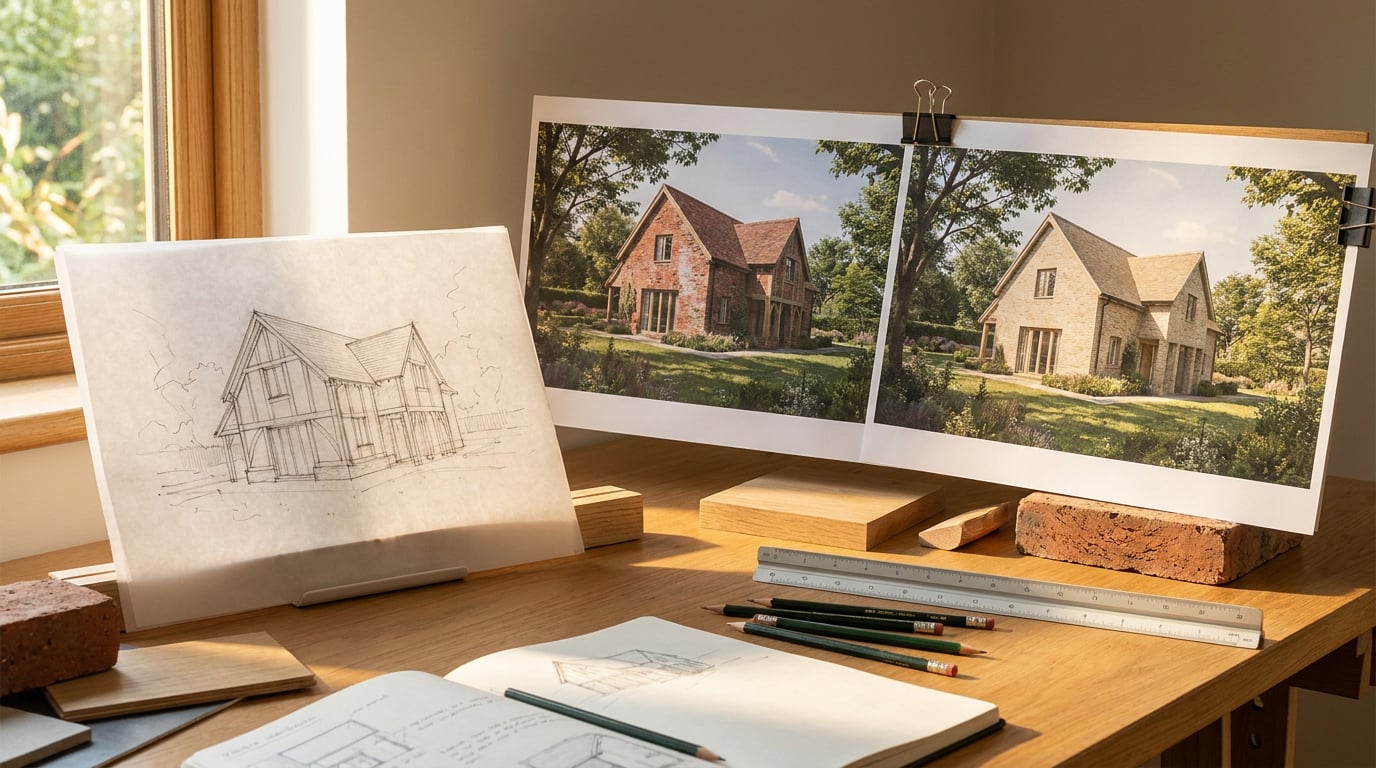
You have a concept image that nearly works. Here is how to change one variable per pass, keep the good version safe, and know exactly what each edit did.
Why changing three things at once costs you the good version
 The usual failure goes like this. A massing view is nearly right. The roofline sits well, the entrance reads, the building meets the ground cleanly. So you ask for warmer light, a lower camera and a different cladding, all in one prompt. The result is worse, and you cannot say which of the three changes broke it.
That is the cost. Not the wasted generation, but the lost attribution. Three variables moved together, so the failure belongs to all of them and none of them. You are now guessing, and each guess is another pass that may break something else.
A single-variable pass gives you clean cause and effect. If the lower camera helped and the new cladding hurt, you only learn that by separating them. Run the camera change alone and it passes. Run the cladding alone and it fails. Two prompts, two clear answers, and the good version is still sitting untouched where you left it.
This is a workflow principle, not a measured statistic. No study I could find quantifies the time lost to multi-variable prompting, so treat the claim as something you can verify on your own next image in ten minutes. Change three things, then change one, and see which result you can explain.
### Five dials, and two that are not dials
On an architectural image, five variables behave like independent dials:
1. **Camera:** height, lens, position, crop.
2. **Lighting:** time of day, sun angle, interior glow.
3. **Weather:** overcast, clear, wet ground, low cloud.
4. **Entourage:** people, vehicles, planting density, street furniture.
5. **Grade:** colour balance, contrast, saturation, the overall mood.
Each of these changes how the proposal is **read**. None of them changes what is proposed.
Material and massing are different in kind. Facade material, storey heights, openings and roof form change the scheme itself. A planner looking at a street elevation will treat a change from brick to zinc as a change to the proposal, because it is one. So will a client, and so will a conservation officer.
That distinction is the whole discipline. Iterating on how a scheme is seen is cheap and reversible. Changing the scheme is a design decision, and it belongs in the model, not in a prompt.
The usual failure goes like this. A massing view is nearly right. The roofline sits well, the entrance reads, the building meets the ground cleanly. So you ask for warmer light, a lower camera and a different cladding, all in one prompt. The result is worse, and you cannot say which of the three changes broke it.
That is the cost. Not the wasted generation, but the lost attribution. Three variables moved together, so the failure belongs to all of them and none of them. You are now guessing, and each guess is another pass that may break something else.
A single-variable pass gives you clean cause and effect. If the lower camera helped and the new cladding hurt, you only learn that by separating them. Run the camera change alone and it passes. Run the cladding alone and it fails. Two prompts, two clear answers, and the good version is still sitting untouched where you left it.
This is a workflow principle, not a measured statistic. No study I could find quantifies the time lost to multi-variable prompting, so treat the claim as something you can verify on your own next image in ten minutes. Change three things, then change one, and see which result you can explain.
### Five dials, and two that are not dials
On an architectural image, five variables behave like independent dials:
1. **Camera:** height, lens, position, crop.
2. **Lighting:** time of day, sun angle, interior glow.
3. **Weather:** overcast, clear, wet ground, low cloud.
4. **Entourage:** people, vehicles, planting density, street furniture.
5. **Grade:** colour balance, contrast, saturation, the overall mood.
Each of these changes how the proposal is **read**. None of them changes what is proposed.
Material and massing are different in kind. Facade material, storey heights, openings and roof form change the scheme itself. A planner looking at a street elevation will treat a change from brick to zinc as a change to the proposal, because it is one. So will a client, and so will a conservation officer.
That distinction is the whole discipline. Iterating on how a scheme is seen is cheap and reversible. Changing the scheme is a design decision, and it belongs in the model, not in a prompt.
Camera, light, weather, entourage and grade change how a scheme is read. Massing and material change the scheme. Keep them in separate conversations.
Lock the baseline before you touch anything
Pick the version you would be content to send to a client today and name it as the baseline. Everything that follows is measured against it, never against the last attempt. That last clause matters more than it looks. Comparing each pass to the one before it is how drift happens. Pass four looks fine against pass three, pass three looked fine against pass two, and by pass six the roofline has quietly shifted and nobody noticed because no single step was dramatic. Measure against the baseline every time and the drift shows up immediately. ### Name what is already working Write down what is good. Be specific. - The roofline: a shallow mono-pitch stepping down toward the street. - The entrance proportion: a recessed door at about a storey in height, with a deep reveal. - The way the building meets the ground: a low plinth, no visible slab edge. If you cannot name what is good, you cannot protect it. A vague sense that the image is nearly right gives you nothing to check a new version against. A written list gives you three things to look for the moment a result comes back. ### The hold clause Put a plain-language hold clause in every prompt. Name the massing, storey heights, roof form and openings as unchanged. Something like: *Keep the building massing, storey heights, roof form, window and door positions exactly as in the source image. Change only the camera height.* Be clear about what this is. It is a preservation instruction to the model. It is not a geometric lock, and no prompt wording makes it one. Models can and do move a window or soften a parapet while apparently obeying you. So the clause lowers the odds of drift but does not remove them, and you still check every result against the baseline. Count the windows. Check the roof edge. Look at the ground line. ### Never overwrite the baseline Keep the baseline in Image's gallery and leave it alone. Each pass is a new image, so any wrong turn is one step from home. The moment you overwrite the good version you have turned a reversible exploration into a gamble. ### Know when the problem is the model Where the image came from a model, such as a Linea perspective sent to the rendering studio, go back to the model to change the design. If the cladding is wrong, repaint the surface in Linea. If the entrance is too wide, change the opening there. Do not try to prompt the geometry into shape. A prompt is a poor tool for dimensional change, and every attempt risks the proportions you were trying to keep.If you are asking a prompt to move a window or change a storey height, stop. That is a design change, and the model is where it gets made.
Running single-variable passes in Image and on the Canvas
 The simplest controlled test needs no special machinery. In Image, use the same prompt with one clause swapped. Keep the source image, keep the hold clause, change only the lighting sentence, and set the result beside the baseline.
Here is what a set might look like for a single street view:
| Pass | Changed | Held still |
|---|---|---|
| baseline | Nothing | Everything |
| cam-low | Camera height to eye level | Light, weather, entourage, grade, massing, openings |
| light-dusk | Dusk sky and interior glow | Camera, weather, entourage, grade, massing, openings |
| entourage-sparse | Fewer figures, no vehicles | Camera, light, weather, grade, massing, openings |
Four passes, four sentences of difference, and every result is explicable. When one fails, you know why.
### Wiring a set on the Canvas
The Canvas turns this into a layout rather than a list. Wire one source image into several Image Generate nodes and give each a prompt that differs on one axis only. The set reads as a column of comparisons, not a pile of options. Because every node shares the same source and the same hold clause, the only thing that varies is the thing you chose.
### Corb and the variations tool
Corb on the canvas can spawn a set of two to six variations off one image he has been shown, varied along a single axis: camera, lighting, weather, entourage or grade. The server composes the geometry-holding clause and writes it into every prompt in the set, so it does not depend on Corb remembering to include it. As with your own hold clause, it is a preservation instruction and not a geometric lock, so the result still needs checking against the baseline.
The nodes land idle. Nothing is charged until you press Run, so you can inspect the prompts, edit one, or delete two before spending anything.
A third-party comparison reports API image generation at fractions of a dollar per image at 1K, from roughly $0.014 for FLUX.2 Klein to about $0.07 for FLUX.2 Max. Those are API estimates, not what any subscription interface charges, and they say nothing about consistency or geometric fidelity. They support one narrow point: testing a handful of controlled variants is not an expensive habit at API scale. Check the provider directly before relying on any figure.
### Ask for a set only when you can name the axis
The request has to be precise. *Four ways this corner reads at different times of day* is a valid request. The axis is lighting, the subject is fixed, and the output is a comparison.
*Give me some options* is a request for a new scheme, and that is not what the tool is for. Corb varies how an image is read. He does not generate alternative designs. If you cannot say which dial you are turning, you are not iterating on a concept image, you are asking for a different building.
### Pick the winner on one axis
Run the set, then choose the winner on the single axis you tested. Not the one you like best overall. The one that is best at lighting, if lighting was the test. That winner becomes the new baseline, and the next single variable starts from it.
This is the loop: freeze, change one thing, compare, promote the winner, repeat. It is slower per step and faster overall, because you never have to untangle a result.
The simplest controlled test needs no special machinery. In Image, use the same prompt with one clause swapped. Keep the source image, keep the hold clause, change only the lighting sentence, and set the result beside the baseline.
Here is what a set might look like for a single street view:
| Pass | Changed | Held still |
|---|---|---|
| baseline | Nothing | Everything |
| cam-low | Camera height to eye level | Light, weather, entourage, grade, massing, openings |
| light-dusk | Dusk sky and interior glow | Camera, weather, entourage, grade, massing, openings |
| entourage-sparse | Fewer figures, no vehicles | Camera, light, weather, grade, massing, openings |
Four passes, four sentences of difference, and every result is explicable. When one fails, you know why.
### Wiring a set on the Canvas
The Canvas turns this into a layout rather than a list. Wire one source image into several Image Generate nodes and give each a prompt that differs on one axis only. The set reads as a column of comparisons, not a pile of options. Because every node shares the same source and the same hold clause, the only thing that varies is the thing you chose.
### Corb and the variations tool
Corb on the canvas can spawn a set of two to six variations off one image he has been shown, varied along a single axis: camera, lighting, weather, entourage or grade. The server composes the geometry-holding clause and writes it into every prompt in the set, so it does not depend on Corb remembering to include it. As with your own hold clause, it is a preservation instruction and not a geometric lock, so the result still needs checking against the baseline.
The nodes land idle. Nothing is charged until you press Run, so you can inspect the prompts, edit one, or delete two before spending anything.
A third-party comparison reports API image generation at fractions of a dollar per image at 1K, from roughly $0.014 for FLUX.2 Klein to about $0.07 for FLUX.2 Max. Those are API estimates, not what any subscription interface charges, and they say nothing about consistency or geometric fidelity. They support one narrow point: testing a handful of controlled variants is not an expensive habit at API scale. Check the provider directly before relying on any figure.
### Ask for a set only when you can name the axis
The request has to be precise. *Four ways this corner reads at different times of day* is a valid request. The axis is lighting, the subject is fixed, and the output is a comparison.
*Give me some options* is a request for a new scheme, and that is not what the tool is for. Corb varies how an image is read. He does not generate alternative designs. If you cannot say which dial you are turning, you are not iterating on a concept image, you are asking for a different building.
### Pick the winner on one axis
Run the set, then choose the winner on the single axis you tested. Not the one you like best overall. The one that is best at lighting, if lighting was the test. That winner becomes the new baseline, and the next single variable starts from it.
This is the loop: freeze, change one thing, compare, promote the winner, repeat. It is slower per step and faster overall, because you never have to untangle a result.
Freeze the baseline, name what must stay still, change one visible variable, compare against the baseline, and promote only the winner on that axis.
Fixing one region without re-rolling the whole frame
Sometimes the image is right except for one area. The foreground has gone soft. A stretch of facade is repeating. Regenerating the whole image to fix it risks losing everything good elsewhere, which is exactly the outcome the baseline was meant to prevent. Retouch handles this at the region level. ### Enhance area Select the region and use **Enhance area**. It re-renders just that selection at higher resolution, with no prompt, and composites it back through the selection. It suits wide renders that have gone soft or repetitive: a long cladding run, a distant treeline, a paved forecourt that has lost its texture. Because there is no prompt, there is no new instruction to misread. ### Select by description, then swap You can select by typed description. Typing *all the brickwork* selects every matching region. Then apply **Material swap** with an attached reference, and the selected area's texture changes to match it. The swap lands as a toggleable layer. Switch it off and you are looking at the baseline; switch it on and you are looking at the change, in place, with nothing else moved. That is a controlled comparison inside a single document. One caution. A material swap changes the scheme, not just its reading. If the building is going to planning in brick, trying zinc as an atmosphere test is fine for a crit, but it is a different proposal. Make that decision in the model and use the swap to compare, not to decide. ### Re-light presets The six re-light presets are Golden hour, Dusk, Blue hour, Night, Overcast and Sunny. Each regenerates the whole document at a different time of day or weather and arrives as a new layer. That is one variable changed cleanly, with the original still underneath. Toggle the layer to compare. If dusk loses the roof edge, you will see it at once. ### Grade without touching the building Layer masks and adjustment layers keep grade changes non-destructive and maskable. A warmer grade applied to the sky does not touch the building, because the mask confines it. The grade is its own layer in the stack, so it can be switched off, reduced or re-masked without disturbing anything beneath. Retouch can open several documents at once in tabs, switching between them without losing undo history. A practical use: keep the baseline open in one tab and the working version in another, and flick between them.Regional tools protect what is good by confining the change. Use them when one area is wrong, and reserve whole-frame regeneration for when the variable genuinely is global.
Keeping a version trail you can actually read
 A set of ten images called *final*, *final2* and *final_new* is not a trail. It is a trap.
### Name by the variable
Name each image by the variable it changed: *baseline*, *cam-low*, *light-dusk*, *entourage-sparse*, *grade-cool*. Three weeks later the trail still explains itself. You can see at a glance what each one tested, and you can tell which were accepted without opening them.
### Keep a short log
Add one line of notes per pass. *Lower camera helped the entrance read; dusk lost the roof edge.* That sentence is the one that saves the next project, because it records a finding rather than a file. Six months on, the notes tell you that dusk tends to swallow a shallow roof edge, and you light the next scheme accordingly.
### Decide when to stop
Set an exit rule. Once a pass changes nothing you would notice from the pin-up distance, the image is finished. Further iteration is fidgeting, and fidgeting is how a good version gets quietly worse. Step back from the screen, or print it, and ask whether a client or a crit panel would see the difference. If not, stop.
### Read the finalists against the brief
Corb can read the final candidates against the brief and the project stage he holds. He can name a planning or daylight issue an image raises and say who decides it. He will not say a scheme complies. That fence is deliberate: compliance belongs to whoever carries the professional liability, and no assistant should be mistaken for them. He also will not invent a dimension the project notes do not give. If he needs a height or an area to comment, he names the number he would need and asks for it.
Used that way, the final read is a prompt for your own judgement, not a verdict.
### Finish in Layout
Finish in Layout. Place the baseline and the winning variants on a sheet at true size. A Sheet (A1 landscape by default) suits a crit board or competition panel; a Document at A3 suits a Design and Access Statement or portfolio. The comparison that picked the image then also shows how it will read on the board or in the statement, at the scale it will actually be seen. A render that holds up on screen at 100% can fall apart at A1 pin-up distance, and you want to find that out before the print run.
Export a PNG, a vector multi-page PDF at true sheet dimensions, or share a read-only page. Manual layout work costs no credits.
### The takeaway
Change one thing at a time, and make it a thing you can name. Freeze the baseline and never overwrite it. State what must stay still, in writing, in every prompt. Compare against the baseline, not the last attempt. Name the files by the variable, log what each pass taught you, and stop when the change is invisible from across the room. Anything that touches the scheme itself goes back to the model, where it belongs. The good version is only ever one step away, as long as you never stop knowing where it is.
A set of ten images called *final*, *final2* and *final_new* is not a trail. It is a trap.
### Name by the variable
Name each image by the variable it changed: *baseline*, *cam-low*, *light-dusk*, *entourage-sparse*, *grade-cool*. Three weeks later the trail still explains itself. You can see at a glance what each one tested, and you can tell which were accepted without opening them.
### Keep a short log
Add one line of notes per pass. *Lower camera helped the entrance read; dusk lost the roof edge.* That sentence is the one that saves the next project, because it records a finding rather than a file. Six months on, the notes tell you that dusk tends to swallow a shallow roof edge, and you light the next scheme accordingly.
### Decide when to stop
Set an exit rule. Once a pass changes nothing you would notice from the pin-up distance, the image is finished. Further iteration is fidgeting, and fidgeting is how a good version gets quietly worse. Step back from the screen, or print it, and ask whether a client or a crit panel would see the difference. If not, stop.
### Read the finalists against the brief
Corb can read the final candidates against the brief and the project stage he holds. He can name a planning or daylight issue an image raises and say who decides it. He will not say a scheme complies. That fence is deliberate: compliance belongs to whoever carries the professional liability, and no assistant should be mistaken for them. He also will not invent a dimension the project notes do not give. If he needs a height or an area to comment, he names the number he would need and asks for it.
Used that way, the final read is a prompt for your own judgement, not a verdict.
### Finish in Layout
Finish in Layout. Place the baseline and the winning variants on a sheet at true size. A Sheet (A1 landscape by default) suits a crit board or competition panel; a Document at A3 suits a Design and Access Statement or portfolio. The comparison that picked the image then also shows how it will read on the board or in the statement, at the scale it will actually be seen. A render that holds up on screen at 100% can fall apart at A1 pin-up distance, and you want to find that out before the print run.
Export a PNG, a vector multi-page PDF at true sheet dimensions, or share a read-only page. Manual layout work costs no credits.
### The takeaway
Change one thing at a time, and make it a thing you can name. Freeze the baseline and never overwrite it. State what must stay still, in writing, in every prompt. Compare against the baseline, not the last attempt. Name the files by the variable, log what each pass taught you, and stop when the change is invisible from across the room. Anything that touches the scheme itself goes back to the model, where it belongs. The good version is only ever one step away, as long as you never stop knowing where it is.Keep reading.
Try ArchAdemia Tools for yourself
Draw it, model it, render it, publish it. One place, built for architects and small practices. Plans from £19 a month billed yearly (£228 a year), all in.