Sort the Officer's Email Into a Revision Schedule Before You Open a Drawing
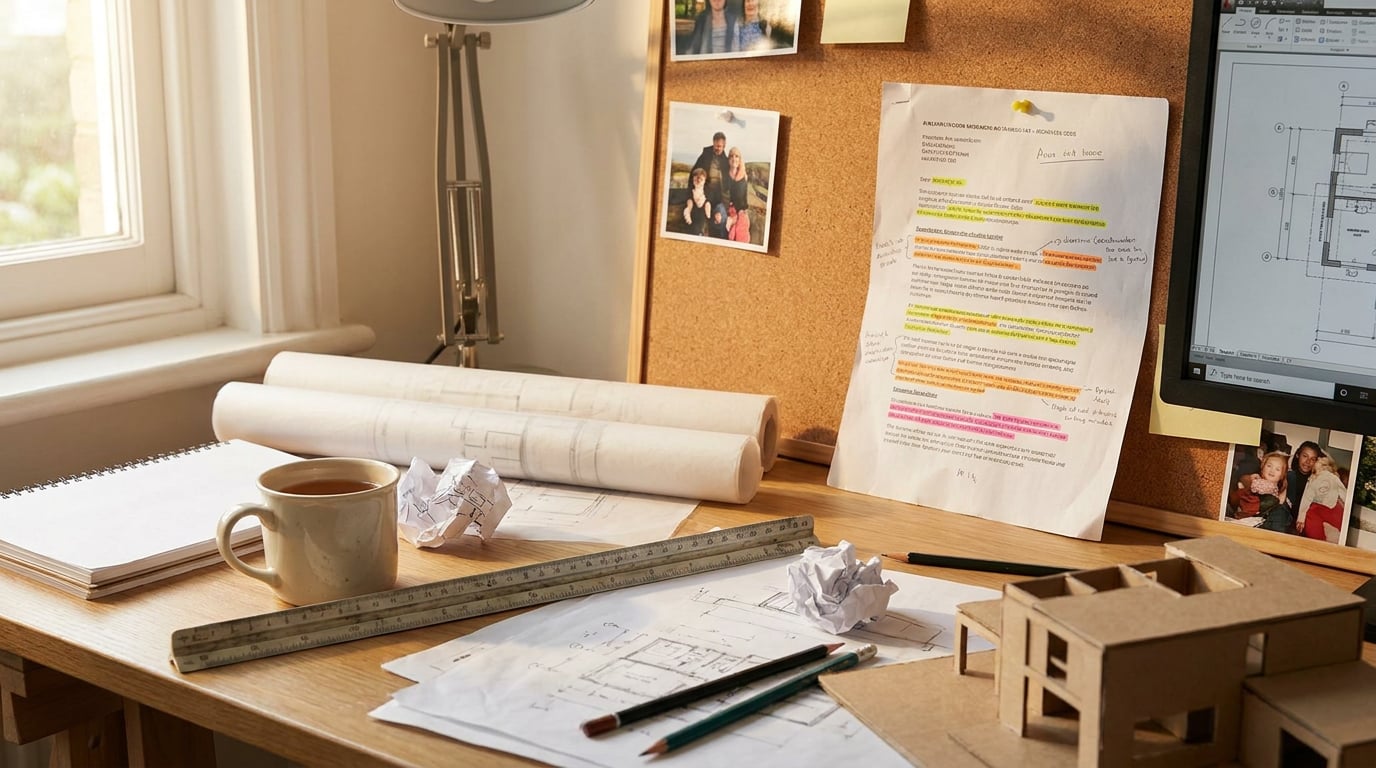
The fastest resubmissions share one habit: nobody touches a drawing until the officer's email has been sorted. A planning officer's comments arrive as a single block of prose, and the temptation is to start redrawing the first thing mentioned. Resist it. Ten minutes of triage decides whether you resubmit in days or drift into a second round of comments.
Split every comment into three buckets:
- Drawing changes. A lowered ridge, a reduced footprint, a relocated window, a different facing material on the elevation.
- Supporting document changes. The Design and Access Statement, the planning statement, a heritage note, the application form or its certificates.
- Points that need a reasoned reply, not a revision. Comments you disagree with, or that rest on a misreading of the scheme.
Only the first bucket touches CAD. That alone shrinks the job, because officers' emails routinely bundle a handful of genuine drawing changes with a larger number of points that are answered in writing.
### Build a one-page revision schedule
Make a simple table before you do anything else. This becomes the spine of your response letter later, so build it properly now.
| Comment ref | Officer's point (short) | Drawings affected | Actioned by | Status |
|---|
| 1 | Reduce ridge height by 300mm | Section AA, South and East elevations, roof plan | Architect | Open |
| 2 | Clarify facing material to street frontage | North elevation, DAS p.14 | Architect | Open |
| 3 | Daylight impact on No. 12 | None: reasoned reply | Consultant | Phone officer |
Number the comments exactly as the officer does, or number them yourself and keep the officer's wording alongside. The "drawings affected" column is the one that earns its keep. It forces you to name every sheet a single change ripples through, which is how you avoid the classic failure: a ridge lowered on the section and left untouched on the elevation.
The revision schedule is not admin. It is the response letter, the pre-submission checklist and the drawing register in embryo.
### Decide what you accept and what you contest
Go down the schedule and mark each comment as accept, accept with modification, or contest. Then phone the case officer on the contested items before you redraw anything. A ten-minute call often saves a sheet of rework: the officer may clarify that a concern is narrower than the email suggested, or that a modest tweak will close it. You also learn whether a point is a genuine sticking point or a passing observation that can be answered in a paragraph.
Keep a note of the call and its date. It costs nothing, and it gives your response letter a line such as "Following a telephone discussion with the case officer on the 14th, it was agreed that...".
### Where Corb helps, and where he stops
Where a comment concerns massing, roof form or how the building meets the ground, Corb, the assistant chip beside the 2D/3D toggle in Linea, can help you think it through. He answers questions about the drawing for free, and on the canvas he holds your project's brief and stage, so his advice is scoped to the work you are actually doing. Ask him how a lowered ridge changes the proportion against the neighbouring eaves, or what a stepped footprint does to the street frontage.
What he will not do is rule on whether the scheme complies. He can name a planning or daylight issue and say why it matters and who decides it, but that judgement stays with you and your planning consultant. Treat him as a sounding board for the design question, never as the voice that closes the planning one.
Revise the Plans, Sections and Elevations Once, Not Three Times

The commonest cause of a second round of comments is an inconsistent resubmission. The ridge is lowered on the section but not the elevation. The footprint is trimmed on the ground floor plan but the roof plan still shows the old line. The cure is procedural: change the master first, then reissue every view from it.
### Change the model, then reissue the views
In Linea, the 2D plan and the 3D model are the same building, edited together, and sections and elevations are cut from the model as real linework and issued on a sheet like a plan. That means a lowered ridge or a reduced footprint is consistent across plan, section and elevation by construction, because you changed one thing and re-cut the views rather than redrawing each by hand.
The workflow is short:
- Make the change once, in the model.
- Re-cut the affected sections and elevations.
- Reissue the sheets that carry them.
Linea is a drawing and modelling tool for everyday practice work, not a BIM tool, so be clear with yourself about what your master is. If your project is documented in Revit or ArchiCAD, that remains the master and you take the amended content from it. The point holds either way: one source, many views.
### Bring the master drawing in cleanly
Where the master lives in AutoCAD, Revit or ArchiCAD, Linea imports DXF, DWG and native IFC. The import dialog draws the file before it lands and finds the separate drawings inside it. This matters more than it sounds. A practice CAD file routinely holds twenty-odd drawings in one model space, all on the same layers, so a layer picker cannot isolate the plan you want. Click one of the outlined regions, or drag a box by hand, and the import crops to that single plan, cut clean at the edge and landing on the origin.
For a revision, that means you pull in only the ground floor plan the officer queried, not the whole project file.
### Revising linework on an existing sheet
Sometimes the revision is purely linework on a sheet that already exists, and rebuilding it in a model would be overkill. Vector's Import door takes a vector-ready PDF export from AutoCAD, Revit or SketchUp LayOut, or a DXF from any CAD package, and lands it as real, editable linework with no Linea drawing required.
On import, duplicate geometry is removed, broken polylines are rejoined, and layers are restored from the PDF's own layer data or, failing that, from colour and lineweight. A DXF brings its own layers across as they are and lands at true 1:1 scale. A pre-import report shows what changed and lets you tick which layers to keep before anything is created. The same cropping tool applies here: if a sheet holds several drawings, click the one you need.
### Mark the revisions on the drawing itself
The officer should be able to see exactly what moved without comparing two sets side by side. Mark changes directly on the sheet, using Vector's revision cloud and text tools, or Linea's own 2D drafting, which includes a revision cloud alongside leaders, text and hatching on layers you name yourself. Put a revision letter on every changed sheet and cloud only the genuine changes. A drawing clouded from edge to edge helps nobody.
### Type exact dimensions, do not drag them
When the comment is a 300mm height reduction, "about right" is not acceptable. In Linea you start typing a number mid-gesture and it lands in a box beside the cursor. Press Enter to apply it, Tab to step between values where a gesture takes more than one. Lengths read in the drawing's own units, so 6ft and 1200mm both parse. Typing the figure rather than dragging to it removes the quiet drift of a few millimetres that turns into a query on the next round.
Change the master once and reissue every view from it. Consistency across plan, section and elevation should come from the method, not from careful proofreading.
Show the Change Visually: Before-and-After Views the Officer Can Read in Seconds
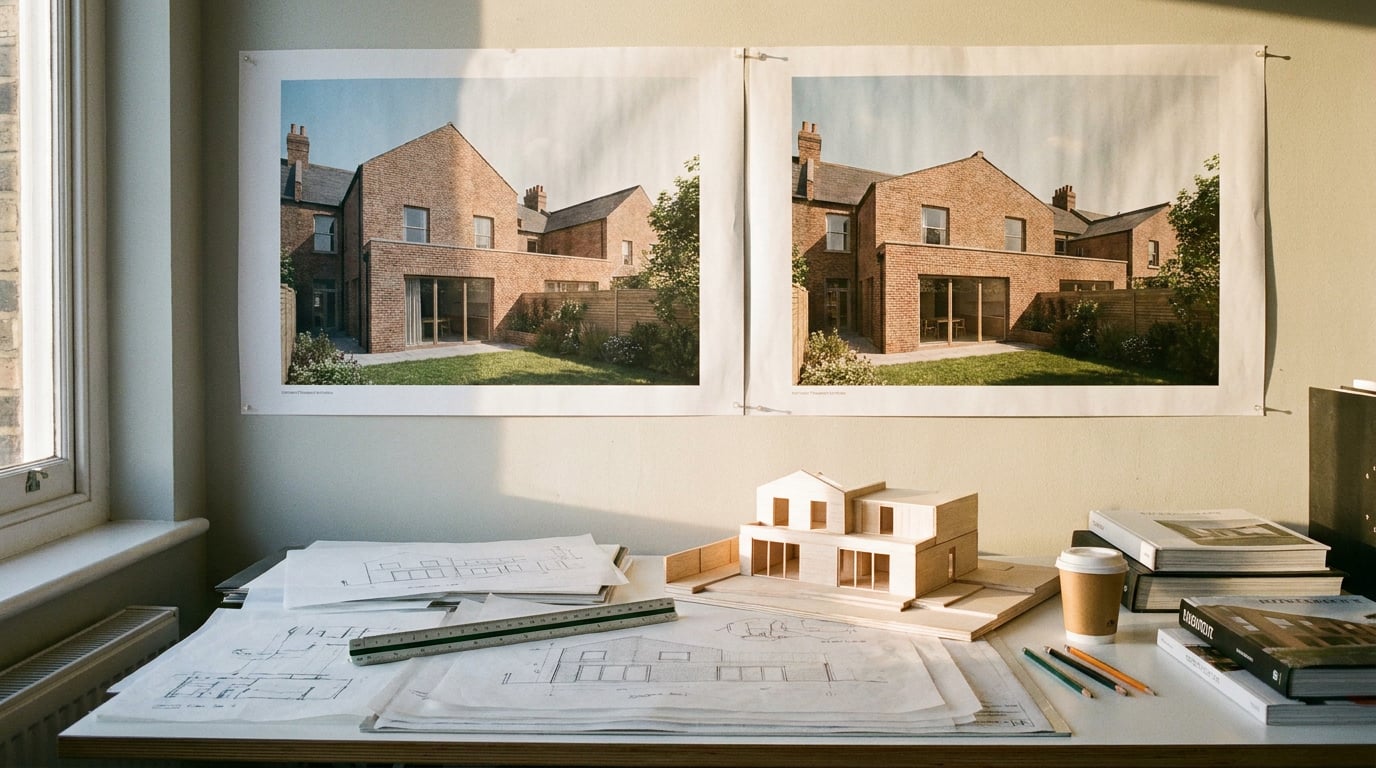
A planning officer reads many applications. A drawing set that makes the change obvious in seconds will be read favourably, and one that makes them hunt will not. Where a revision is contested or visually significant, show it rather than describing it.
### One camera, two states
Pair every contested revision with a before-and-after on a single sheet: the same camera, the same eye height, the original and the amended massing side by side. The discipline is in matching the viewpoint exactly, otherwise the comparison reads as two different views and the reduction looks like an artefact of the angle.
Linea saves views so you can reissue the identical viewpoint after the model moves. Capture the view of the original scheme before you change anything, make the revision, then reissue from the saved view. The result is a like-for-like comparison with no guesswork about where the camera was.
### Re-render the amended view
Send a perspective from Linea straight into the rendering studio for the amended view. Where the officer has queried a finish, open the render in Retouch and work on it non-destructively. Use Image in Retouch to re-light or swap a material, keeping every adjustment on its own layer so the original stays recoverable.
Material swap replaces a selected area's texture to match an attached reference, as a toggleable layer. If the officer has asked for a different facing brick, you can show the alternative against the same elevation without regenerating the whole image.
### Select the brickwork in one pass
Retouch can select by typed description. Type "all the brickwork" and it selects every matching region in the render. For a materials amendment that is a one-pass job rather than an afternoon with the Lasso tool. Check the selection edges, since a description-based selection is a starting point you refine, not a finished mask.
If a view reads soft after the change, Enhance area re-renders a selected region at higher resolution with no prompt and composites it back through the selection.
### Be honest about what a render is
A render is a visual aid that sits beside the scaled drawings. It is never a substitute for them. The officer is assessing the scheme from the plans, sections and elevations, so the amended elevation remains the document of record, and the before-and-after perspective exists to help the reader understand it. Label the sheet accordingly, and make sure nothing in the image contradicts the drawings.
A render explains the change. The scaled, revised elevation proves it. Never let the picture carry weight the drawings should.
Draft the Response Letter and Update the Design and Access Statement
By now the schedule has done most of the thinking. The response letter is largely the schedule turned into prose.
### Write the letter against the schedule
Structure the letter as a numbered reply. For each comment: quote the officer's point, state the action taken, then give the drawing number and revision where it appears. A reader can then check your reply against the sheets without searching.
- Officer's comment: "The ridge height is excessive relative to the adjoining dwelling."
- Action taken: The ridge has been lowered by 300mm.
- Drawing reference: Section AA and South Elevation, Revision B.
Documents lets you draft this long-form with a model of your choice from the writing-model picker, which carries GPT-5.6 Luna, Terra and Sol, Gemini Flash and Pro, and Claude Sonnet 5.5, Opus 5.5 and Fable 5.1, all on every plan. Research can pull the policy wording you are citing, so the quotations in your letter come from the source rather than from memory. Read every extract against the original before it goes out.
### Update the statement without rebuilding it
You rarely need to rewrite the Design and Access Statement, only the pages the change touches. In Layout's Document mode there is a Design and Access Statement template at A3 with a toggleable layout grid. The grid is a reference overlay only and never appears in an export. Revise the affected pages, swap the updated drawings and perspectives into their frames, and re-export a vector multi-page PDF at true sheet size.
If a paragraph needs rewording to reflect the amendment, select the text frame and ask Corb in Layout to rewrite it. Then read every line yourself. He drafts, you carry the professional responsibility for what the statement claims. A statement that says the scheme "respects the roofline of the neighbouring terrace" is a representation you are making, so make sure it is true of the revised drawings.
### Contesting a comment without the defensive tone
Where you have rejected a comment, set out your reasoning in neutral, policy-anchored language and point to the drawing that supports it. Compare two ways of saying the same thing:
- Defensive: "We do not agree that the extension harms the neighbour's light and consider this comment unfounded."
- Neutral: "The extension sits to the north of No. 12 and, as shown on Section BB, falls below the 45-degree line taken from the nearest habitable window. We would be happy to discuss this further."
The second gives the officer something to verify and leaves the door open. The officer is a reader you want on side, and tone is part of the submission.
Every reasoned reply should point at a drawing. If you cannot name the sheet that supports your argument, the argument is not ready.
Run a Pre-Submission Check and Resubmit Without Another Round
A resubmission that sails through has usually been checked against the revision schedule, not against memory. This is the last gate, and it is where preventable second rounds are caught.
### Check every sheet against the schedule
Go through each sheet and confirm:
- The title block is updated and the revision letter is present.
- The scale bar is correct for the scale shown.
- Drawing numbers match those quoted in the response letter.
- Every change on the schedule appears on the sheet it should.
Linea exports a sheet to PDF at a true plotted scale on a chosen paper size, with a title block, so the scale you set in the drawing is the scale the officer measures. Check the scale bar after export, because the number that matters is the one on the PDF in front of the officer.
### Check the portal and the paperwork
Confirm file names, formats and sizes against the planning portal's requirements before you upload. Portals reject oversized or wrongly named files, and a rejection costs a day. Then cross-check the application form, certificates and any plan lists. If drawing numbers have changed, the plan list must reflect the new numbers, or the submission contradicts itself.
### Package it in a logical order
Present the resubmission in a consistent order so the officer reads it the way you intend:
- The response letter.
- The revised drawings.
- The revised statements.
- Superseded drawings, clearly marked as withdrawn.
That last item matters. Leaving an old elevation live on the file beside the new one invites a contradiction, and a contradiction invites a query. State plainly which sheets are superseded so nothing conflicting remains in play.
### Close the loop and reset the baseline
On the day you submit, email the case officer with a three-line summary of what changed. It confirms the resubmission has landed and tells the officer where to look first. Then log the amended set in a project folder with the revision schedule, the response letter and the call notes. If there is a third round, it starts from a clean baseline rather than from a rummage through old emails.
### The takeaway
Fast resubmission comes down to four habits: triage the comments into a schedule before touching a drawing, change the master once and reissue every view from it, show contested changes with a matched before-and-after, and check every sheet against the schedule before it leaves. ArchAdemia Tools puts those steps in one place: Linea and Vector for the drawings, Retouch for the visuals, Documents and Layout for the letter and the statement. The schedule you build in the first ten minutes does most of the work in the rest.