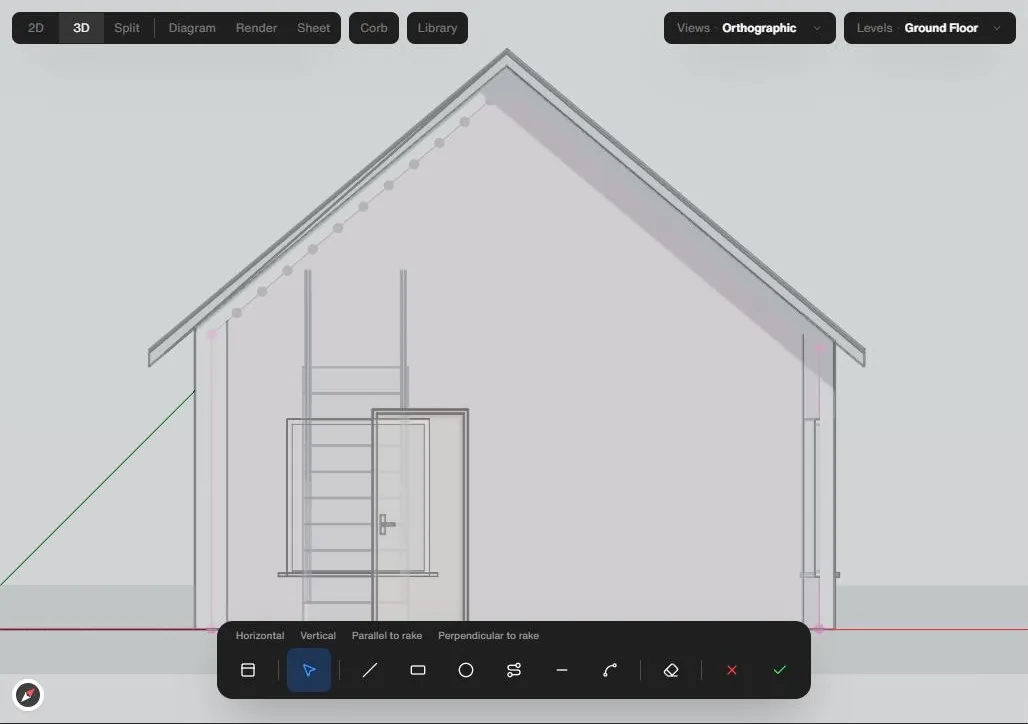
Editing a wall's profile
A wall's profile is the outline of its elevation. Reshaping it lets you cut an opening, notch a gable or draw any outline on a straight wall.
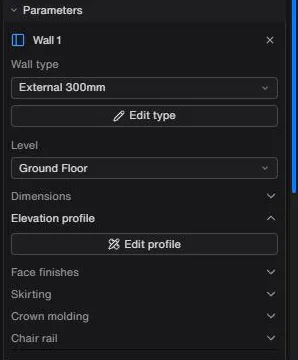
To open the profile
- Select a straight wall.
- In the Parameters row, open Elevation profile and click Edit profile. Right-clicking the wall and choosing Edit profile does the same. Edit profile is for straight walls.
- The Build toolbar is replaced by the profile toolbar. If you opened it from plan, Linea opens that wall's elevation for you.
If the profile session is open but you can't see the wall, a notice reads Edit profile is open on this wall and offers Switch to 3D and open its elevation.
To reshape it
Above the tiles sits a row of locks: Horizontal, Vertical, Parallel to rake and Perpendicular to rake. The held lock is highlighted, and you hold one with the same axis keys as when drawing. The tiles are:
- Select picks a vertex or an edge. Drag a vertex to move it; Delete removes the selected point.
- Line draws point to point to make a new outline or hole, and closing the loop finishes it. Rectangle takes two opposite corners. Circle takes a centre, then a radius you click or type. Arc takes a start point, a point it passes through and an end point.
- Offset takes an edge and pushes it in or out by a distance you move or type. Trim cuts a segment back to the nearest crossing on each side.
- Eraser removes an outline or a hole when you click it, so you can draw your own in its place.
To finish
- Finish (the tick) saves the profile onto the wall. It is dimmed when the outline is invalid or would clip a door or window in half, and its tooltip says which. If the cut leaves a door or window with no wall around it, a warning says finishing will remove it, and it goes in the same undo step.
- Cancel (the cross, also Esc) throws the edit away. Nothing is saved until you finish.
- Open in elevation shows a square-on elevation of the wall in the 2D pane, and Back to 3D returns you to the 3D view with the elevation frame left where it was.
Reset profile in the Parameters row removes an edited profile once one exists.