The right-click menu
Right-click in the model or on the plan and Linea offers only what applies to what is under the pointer and what is selected. Rows that don't apply aren't drawn, so the menu is short.
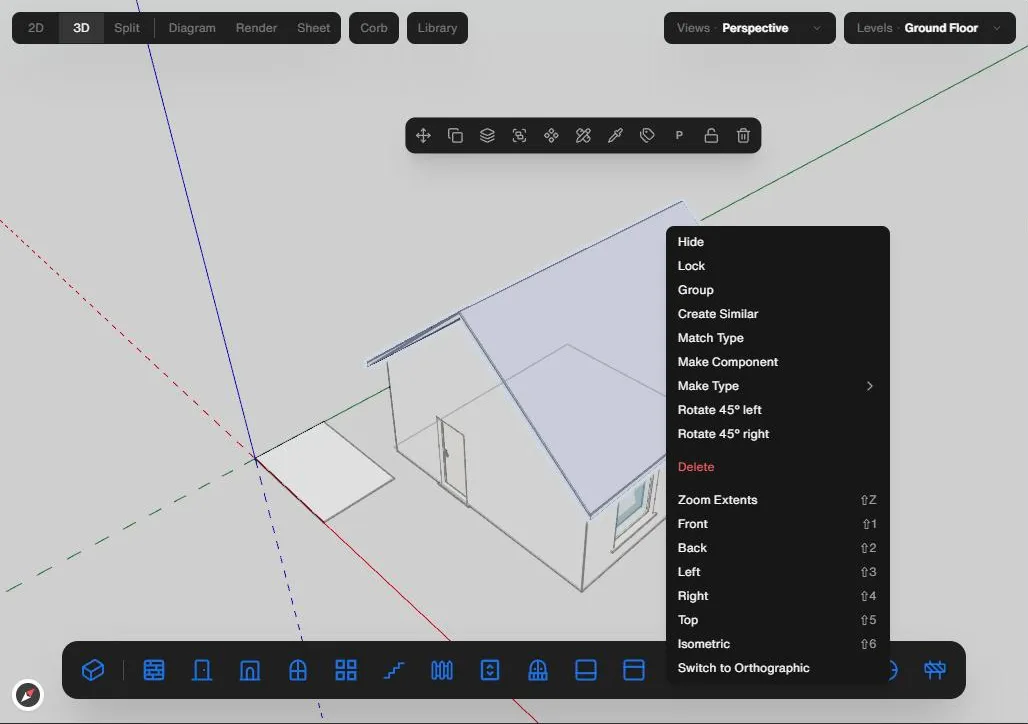
Groups, components and types have their own rows too, covered in Groups, Components and Types. Right-clicking something that isn't selected selects it first. Right-clicking something that is part of the current selection keeps the whole selection, and Hide, Lock, Flip, Delete, Select connected and the roof rows act on all of it. Right-clicking empty space keeps the selection. The menu is a snapshot taken when it opens.
Editing what is selected
- Delete removes the selection in one undo step; with only the ground selected it removes the ground.
- Hide or Show flips the visibility of everything selected; it reads Show when all of it is already hidden. Lock or Unlock works the same way for locking.
- Paste appears when you right-click empty space on the plan. It pastes what you copied onto the current level and carries it on the pointer until you click to place it; Escape removes it.
- Flip appears when everything selected is a wall. It mirrors the selection left to right about its own centre, and pressing it twice restores it.
- Open / Close appears when exactly one thing is selected that opens: a door, a window that opens, or a fitting with an open action such as a cabinet door or drawer.
- Rotate 45° left and Rotate 45° right appear for a group, a multi-selection, a guide or a scan, or a single object that carries a rotation. A group or multi-selection turns about the selection's centre in one undo step.
Selecting more
- Select connected appears when everything selected is a wall. It adds every wall in each selected wall's connected run on that level.
- Select appears in 3D when a face or edge is picked, with Bounding Edges (the edges around the picked face), Connected Faces (faces joined to the pick in the same solid), All Connected (the whole connected object) and Divide. Divide needs exactly one edge selected and asks for a number of segments.
Walls and roofs
- Change wall type opens a list of the same wall types as the wall's own Type control. It needs a single wall.
- Edit profile appears for straight walls and opens the wall's profile for editing. In plan it also moves you to that wall's elevation.
- Join or Unjoin appears in plan when you right-click a wall corner with a partner wall. It switches the automatic corner join between the two walls off, or back on.
- Attach top to roof appears when you have walls and one roof selected. The walls' tops then follow the roof, and the row reads Attached to roof once they do. Detach reverses it.
- Attach head to roof does the same for curtain walls with one roof, but takes a one-off copy of the roof's underside: if the roof changes, detach and attach again. Detach appears once attached, and reads Detach (needs rebuilding) when the roof has moved on.
- Join geometry appears when you select two or more roofs, or one roof and one floor, and links them. Unjoin geometry breaks the link.
Faces in 3D
- Intersect Faces appears when the selection includes an extruded mass, with With Selection (needs two or more masses) and With Context (needs one or more). The result is written in one undo step.
- Reverse Faces appears when a picked face belongs to an extruded mass, and reverses every such face you picked.
Pads and platforms
These rows appear when you right-click a pad or platform. the Edit row, named for the pad or platform, is a reminder that its outline handles are already live, Rename (puts the name in the pad's panel into editing), and Delete pad or Delete platform. For a platform built from a road, the row reads Edit the road and selects the road's centreline. Right-click a building, group or component that sits inside a pad and isn't already on it, and Put on the pad's name adds it to that pad. See Platforms and pads.
Looking around
- Zoom Extents (Shift+Z) frames the selection, or the whole model when nothing is selected.
- In 3D the menu also lists Front (Shift+1), Back (Shift+2), Left (Shift+3), Right (Shift+4), Top (Shift+5) and Isometric (Shift+6). Left and Right are named for the side of the building you look at.
- Switch to Orthographic and Switch to Perspective toggle the camera.
- Reset axes appears when you have moved the drawing's axes from the world default, and puts them back.
More on the views themselves in Standard views and Moving the camera.